|
|
AutonomIQ |
Release 4.11
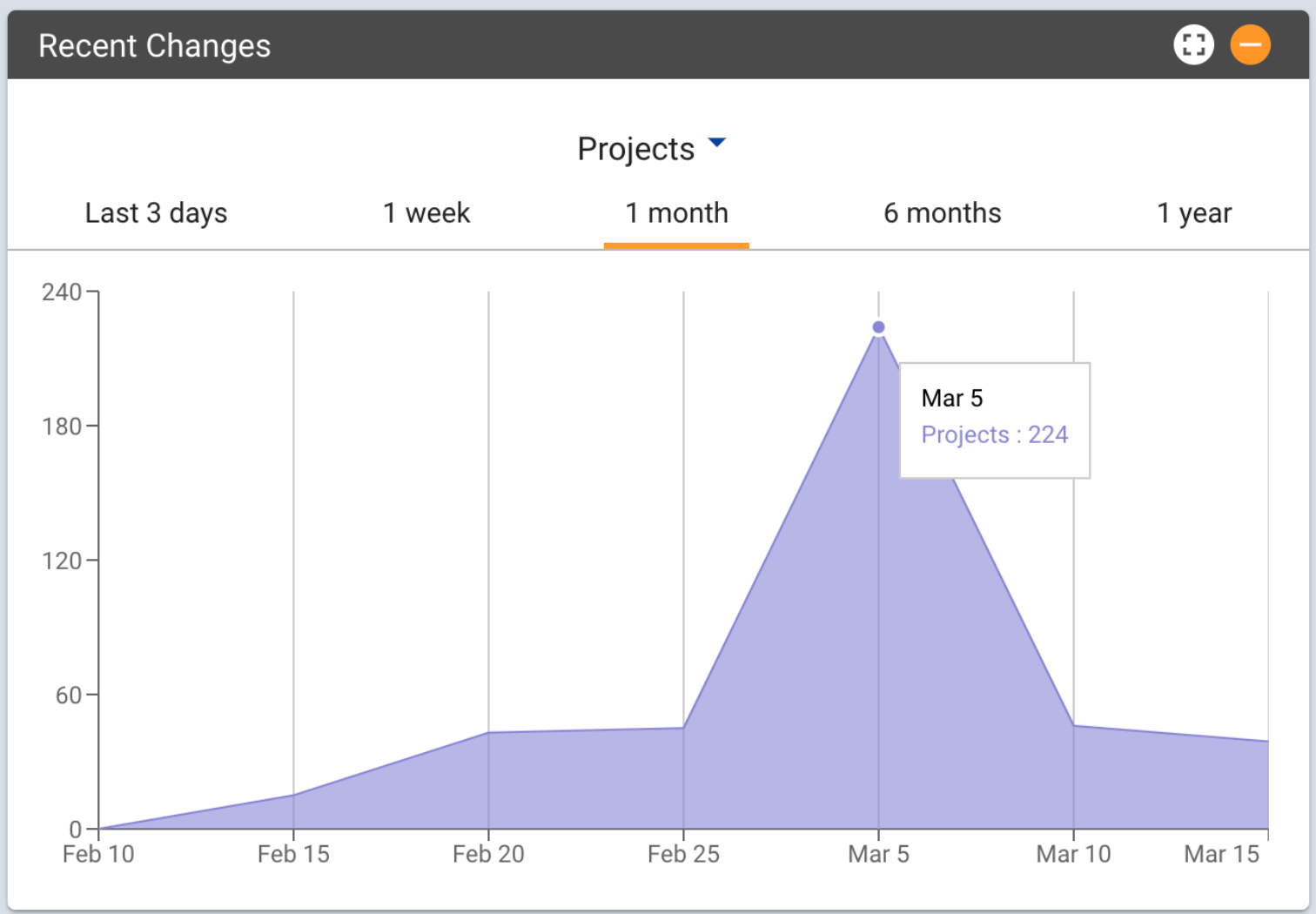
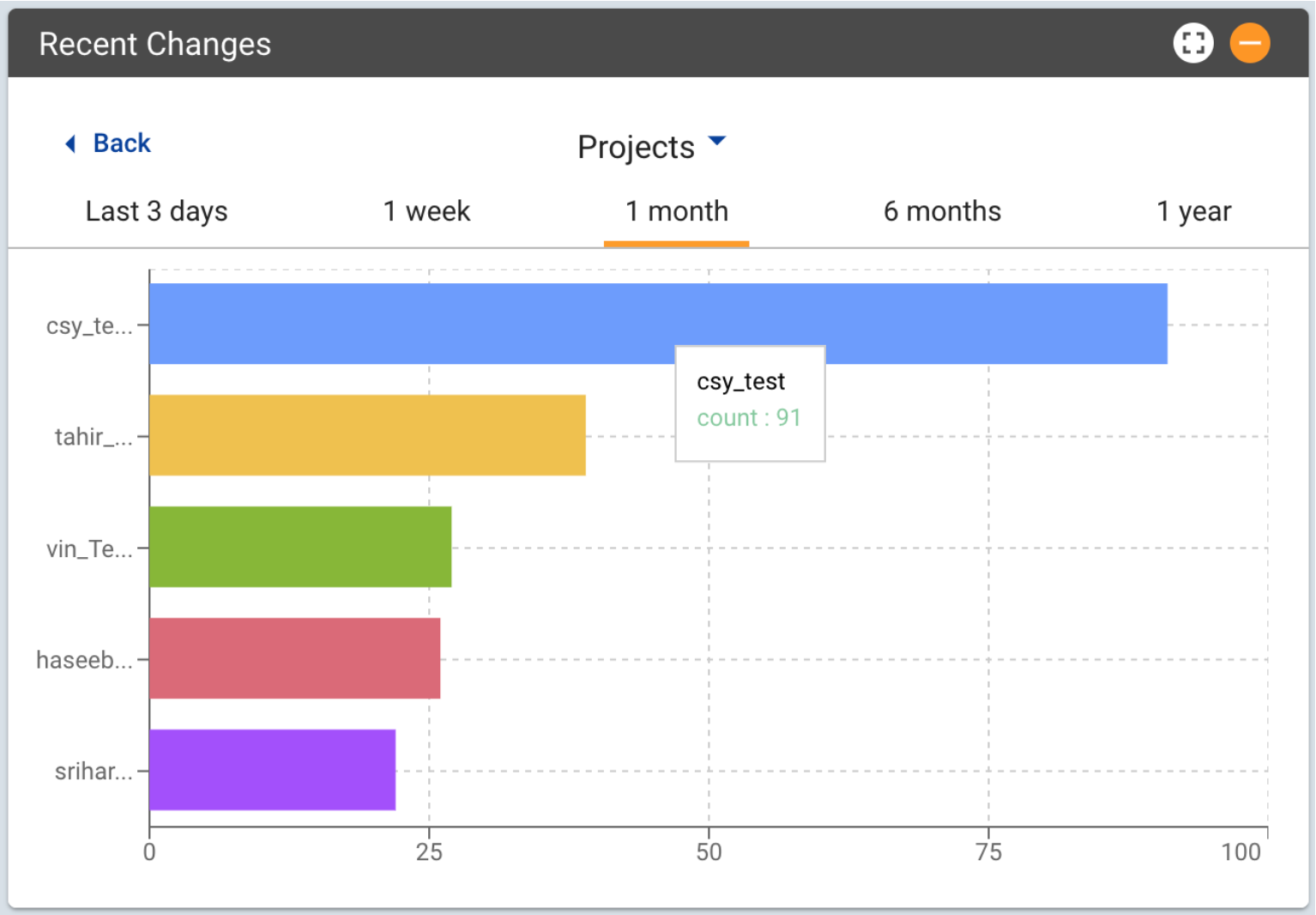
Drill down added to Recent Changes Graph on dash-board 2
Email trigger on scheduled execution completion 3
Schedule suites - Project & Suite level 4
Export scripts to Bitbucket on script generation 4
Download script file on script generation 4
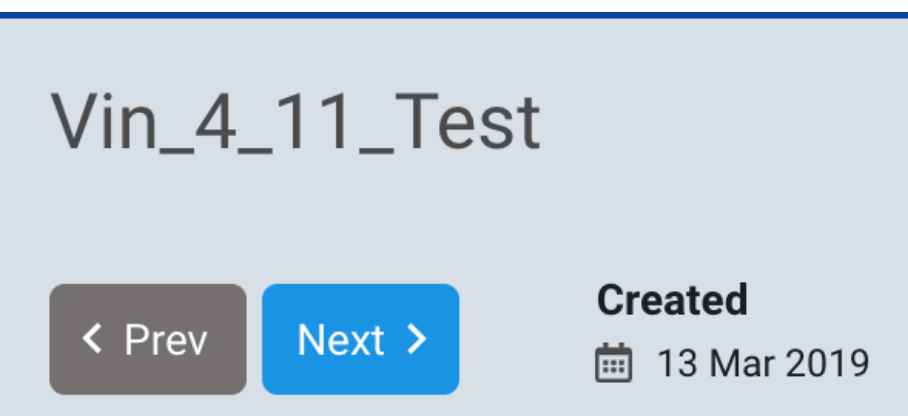
Previous - Next button change 9
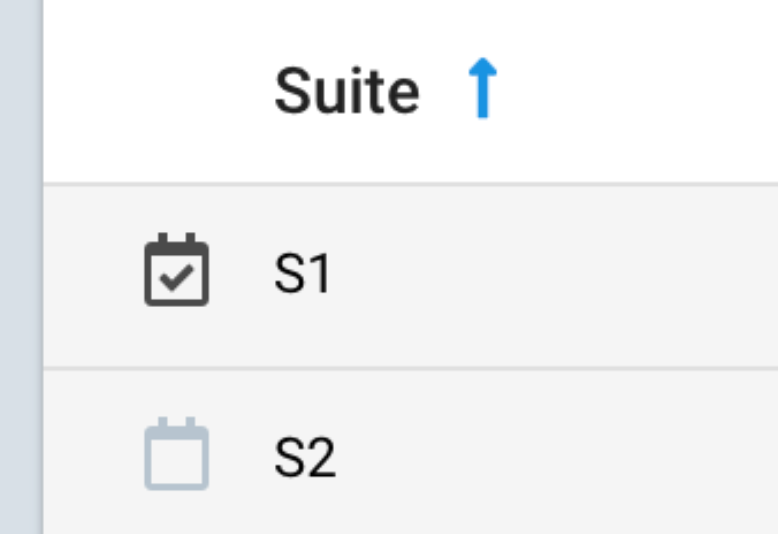
Testsuites différentiation based on scheduling 10
Addition of support for moveandClick 10
Addition of support for discovery with firefox 11
Excel function support for variables 11
Support execute script (file) 12
Addition of support for creating xpath with container style data 12
Clicking on any specific point on the graph will now take the user to a bar graph. This shows the top 5 project. Test suites, test cases(selectable from dropdown) which has changes.
|
|
|
Email triggered to user on completion of scheduled execution.
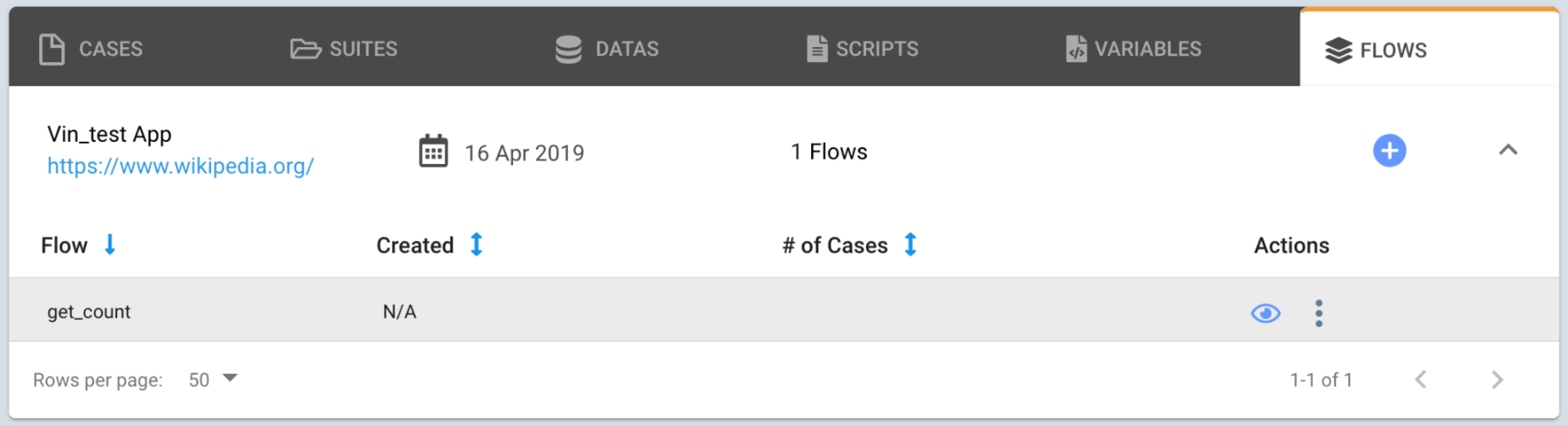
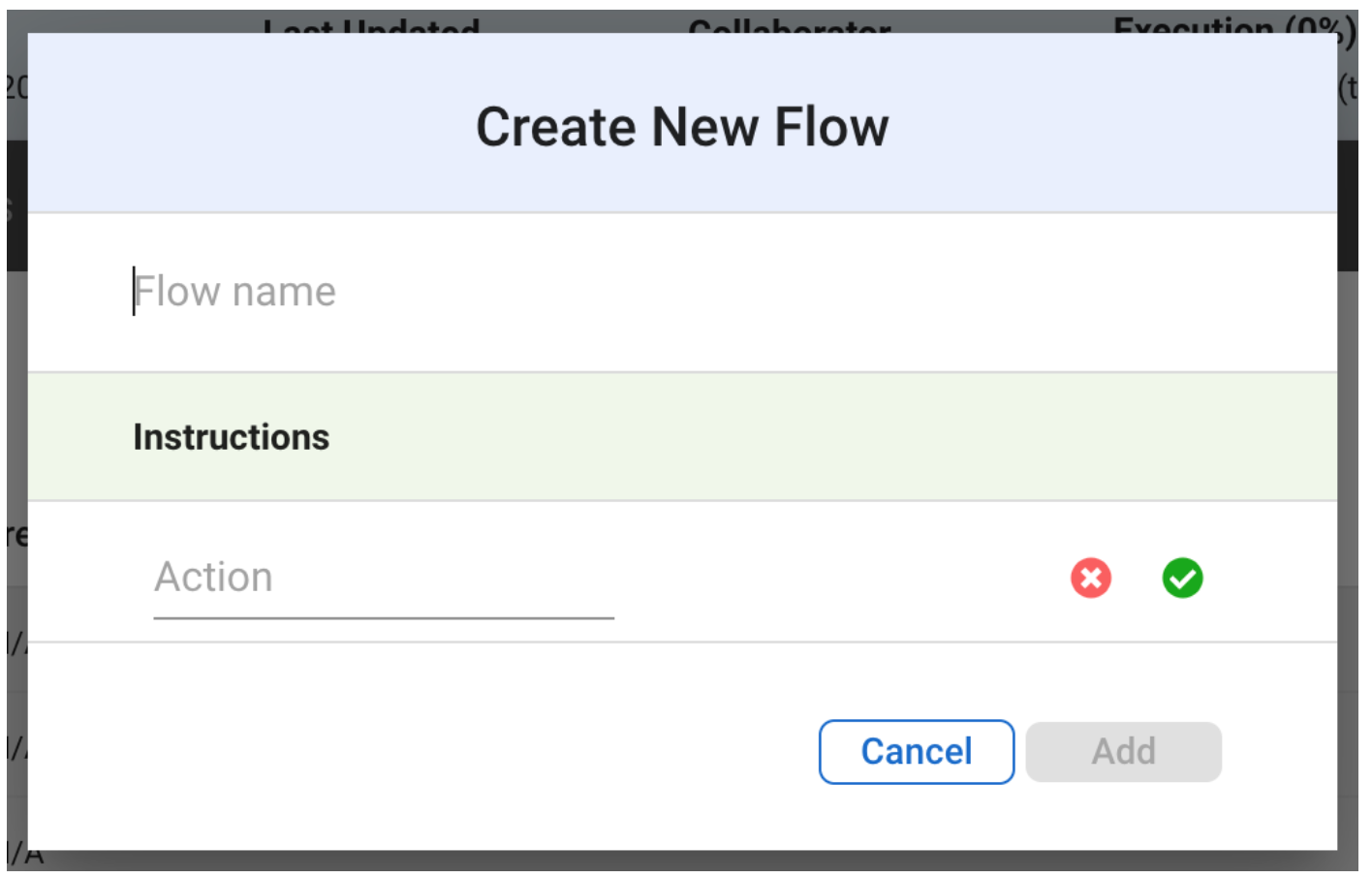
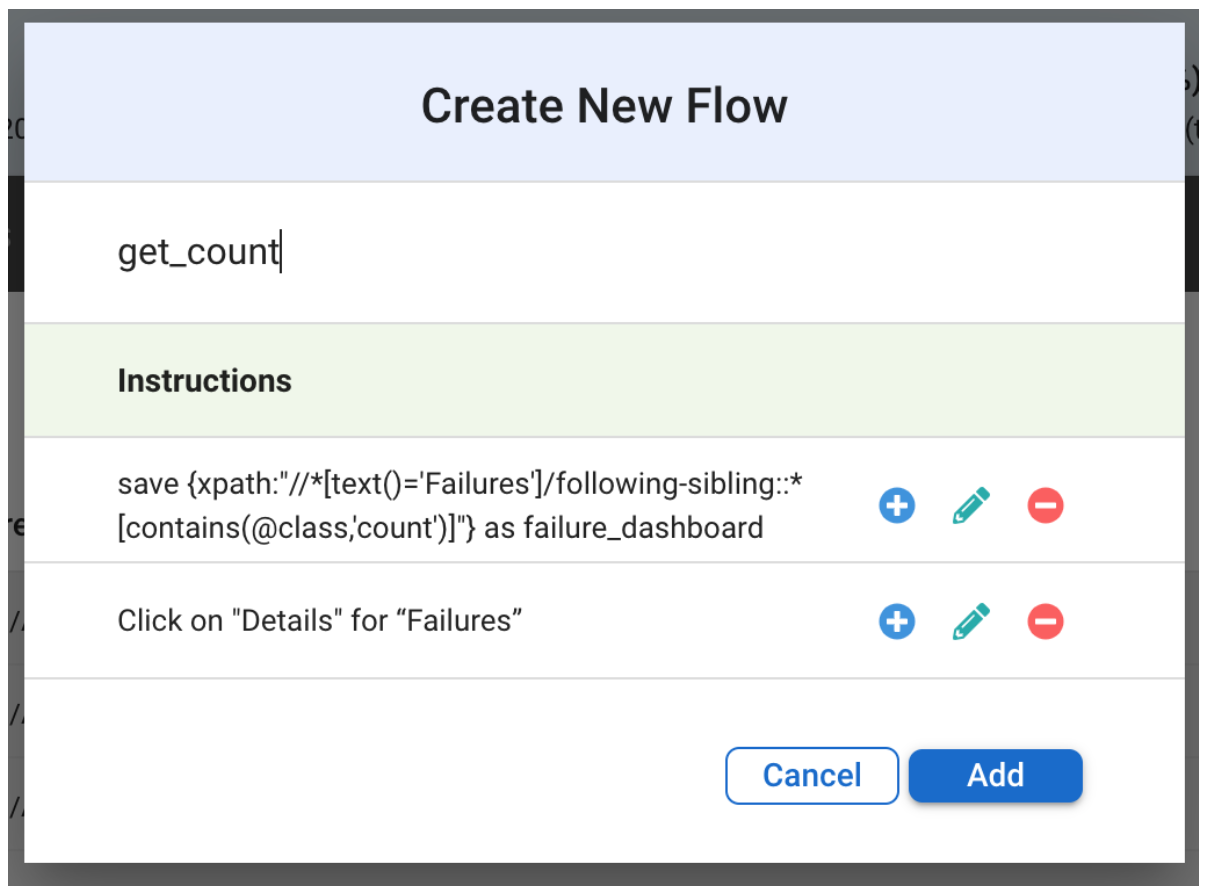
Flows are a new feature where in, user can create a block of code which can be reused across test cases.
This will allow the user to save time when repeating blocks of test steps have to be used in multi- ple places.
Currently support is for adding and cloning a flow.
|
|
|
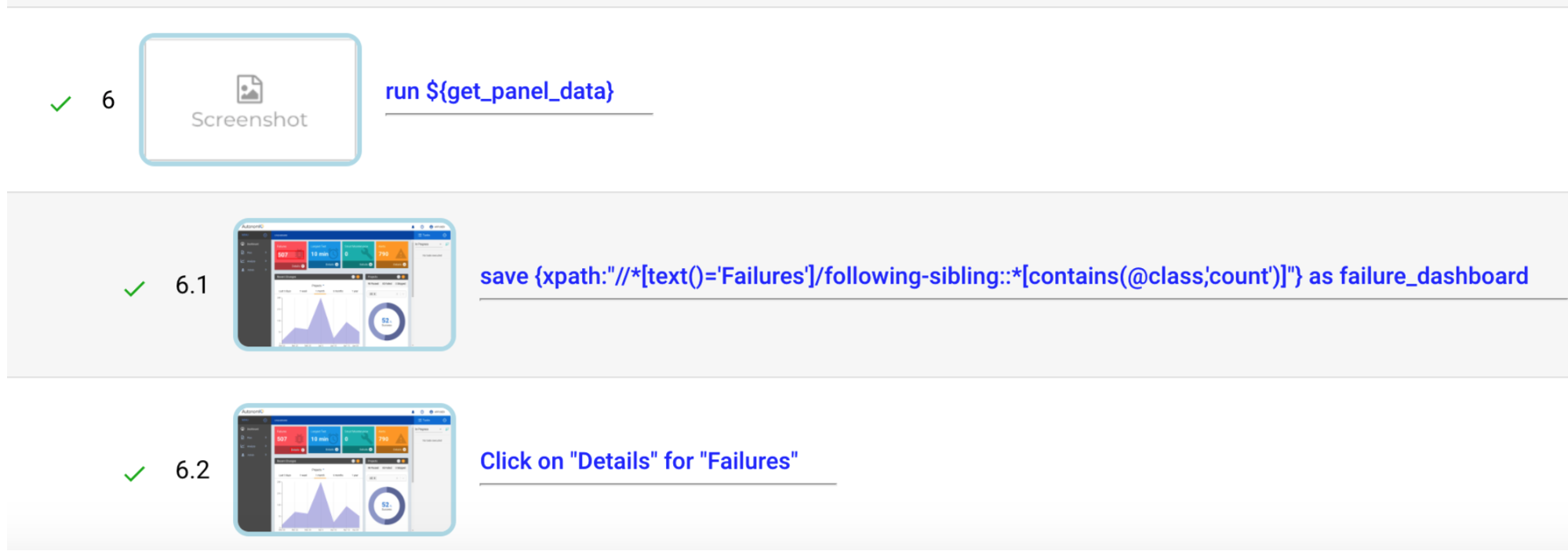
Once a flow is created, it can be used in a test step in the following way.
|
run ${flow_name} |
During generation for the first time, the steps will expand to display the steps inside the flow.
Project and Suites now support scheduling.
User first need to authorise with bitbucket to generate oath token for themself using key and se-cret. Key and secret are created for a user when a customer is registered with them. If this is done then using API scripts can be exported to BitBucket.
API support now allows script download on generation.
API to update scripts whenever there is any change in flow by passing excel file or new instructions rather than uploading it as a new test case
This is intended for accessing in internal networks.
User will be provided with the createTunnel.sh file -
|
createTunnel.sh [-u username] [-p password] [-h] \ [-s secure local port] [-k api key] [-i aiq ip address] |
-h - Help
-i - aiq ip address
-u - aiq username
-p - aiq password
-k - aiq ssh key file path
-s - secure local port
-w - local ssh password
Ex:
|
./createTunnel.sh -u appuser -p app123 \ -s 12347 \ -k ~/.ssh/autonomiq-dev.pem \ -i 54.183.158.145 |
Upload feature is similar to previous model. It allows adding test case, test data (optional) and artefact (optional)
If more than 1 file is uploaded, then the Modal changes. The new modal will allow only multiple test case files to be uploaded.
If the user wants to upload test data to associate with these files, they should go to Data Tab and upload the necessary data files and associate it with the test case.
New button is added so that the user can save the test steps, they had edited previously.
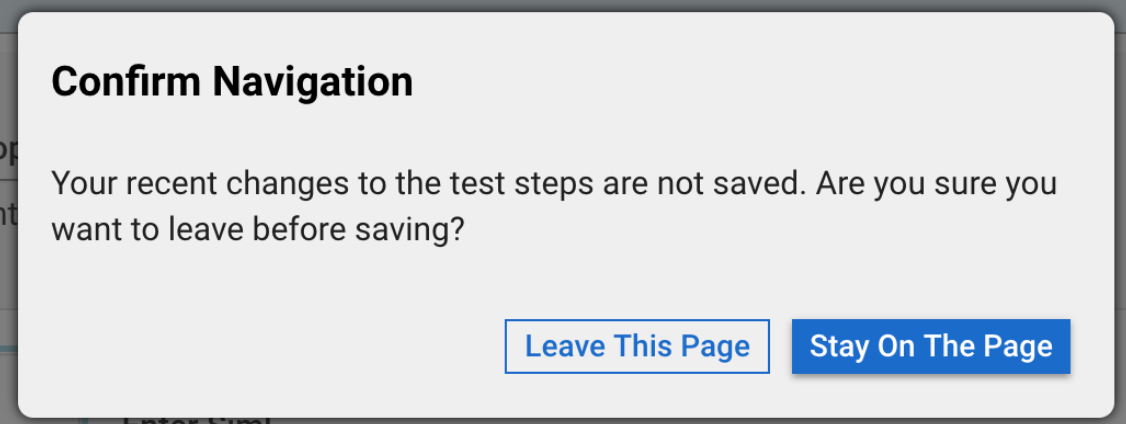
If user navigates away from the page with unsaved changes in the page, a pop-up will be dis- played as below.
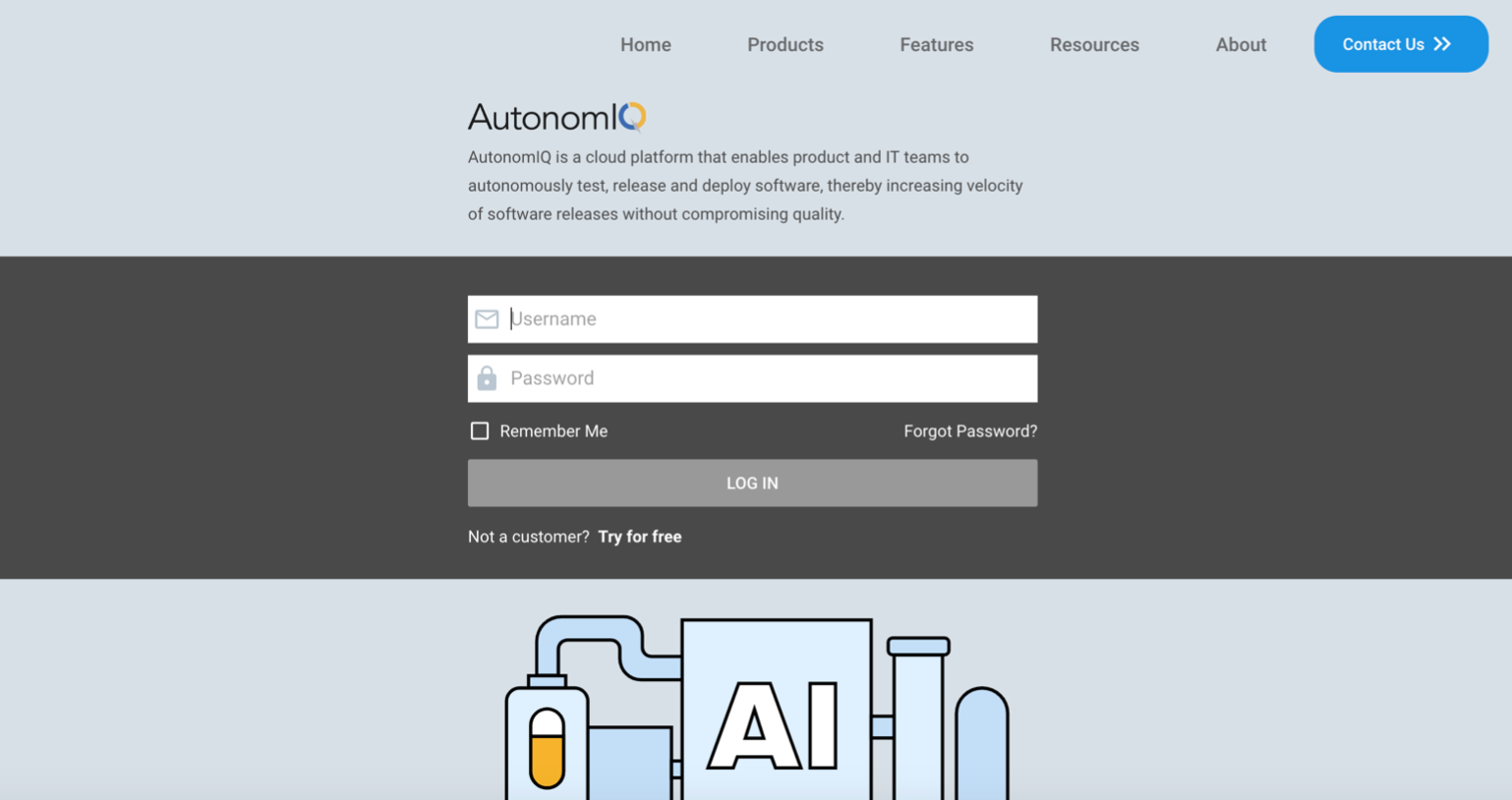
Login page changed to resemble below screenshot.
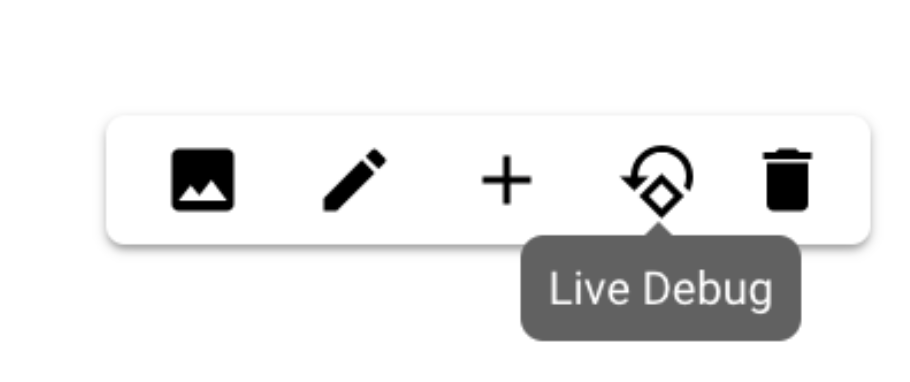
Live Debug now allows the user to fix any issues with the current instruction, through the use of HTML DOM Screenshot.
1) Retry test case (if it's too older)
2) Click on "Live Debug" icon
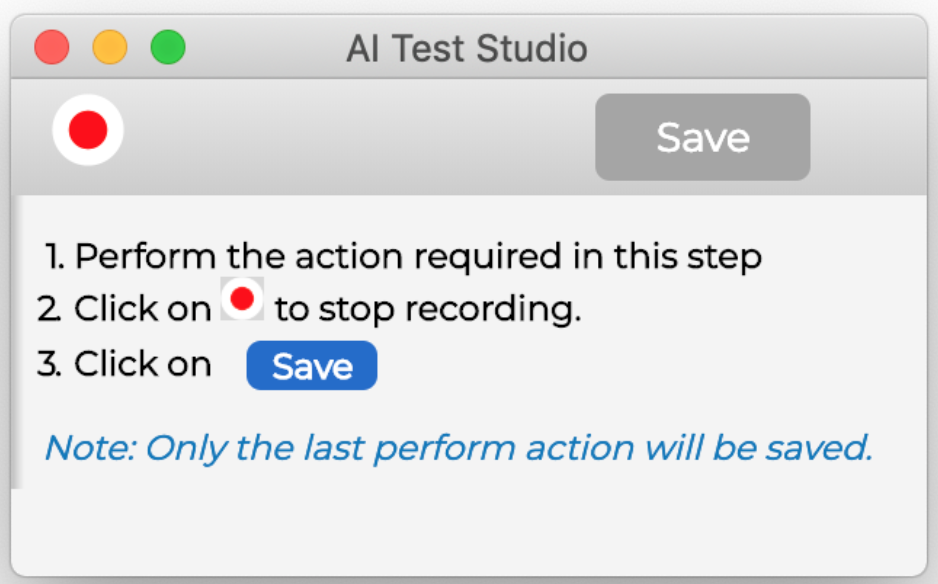
3) Recorder will open automatically
4) Start recording step and save (If multiple steps recorded, it will consider only last one)
5) Newly edited step will come up on UI right after you save from recorder
6) If all done, hit Retry button
|
|
|
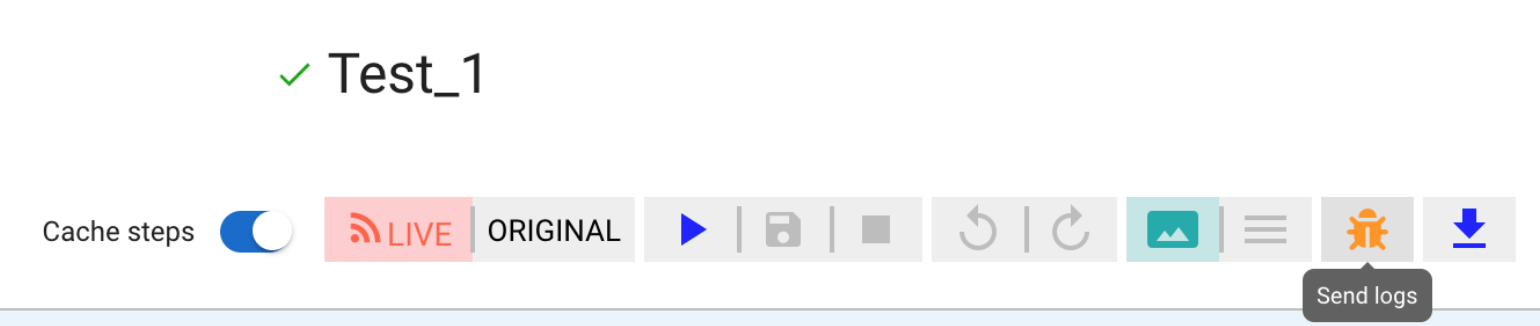
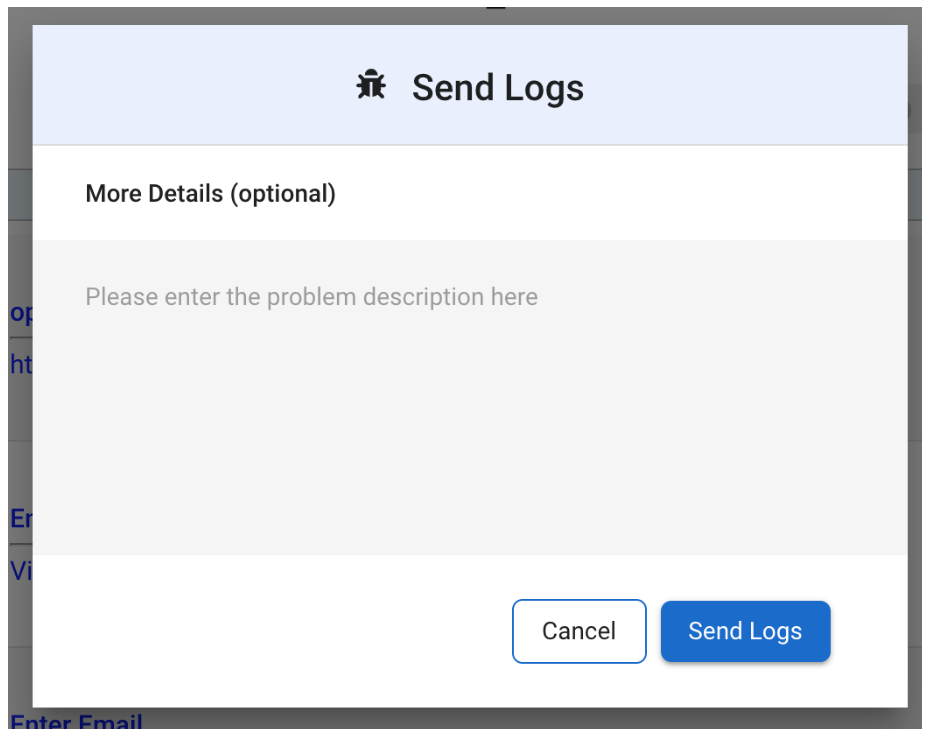
Send logs now moved from Project page to test case page. A new icon is added for this. Clicking on this opens up a new modal, where user can add more details.
On clicking on send logs, 2 emails will be triggered. One to the user and one to the admin team. User can use this email as reference if they want to follow up on any issues.
New buttons added below the Project title for navigation between projects
In Projects -> Suites Tab
Image recognition support for plus, minus, caret, delete and edit icons
Instruction will be
|
Click on ‘caret’ icon |
This instruction will ensure that the mouse move action is performed prior to clicking.
|
Click on username —moveAndClick |
Can be executed in two ways.
1. Use “—firefox” argument in instruction
|
open website --firefox |
2. This can be set project wise by adding browser variable in variables tab. By default browser is set to Chrome. Available browser support - Firefox, Chrome
Excel function now supports variables.
|
_xl{DATE(TODAY())} as today _xl{SUM(“$12”, “$13")} as sum |
|
exec _bash{echo “test”} with ${input} returning ${output} |
|
Click on ${identifier1} for ${identifier2} |
Can be used in the following scenarios:
1. Where there are multiple repetitions of the same button, but there are unique identifiers for
each which is present in the container surrounding it.
ex:
|
Click on READ MORE for Skate Victoria |
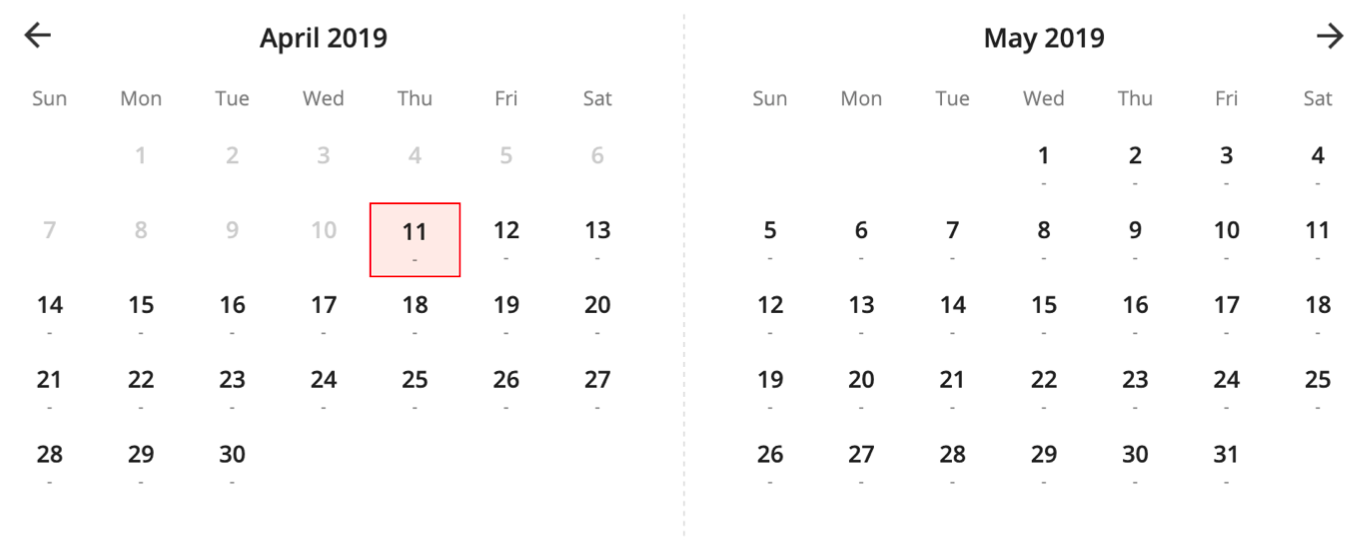
2. When there are multiple calendar pages (similar situation as above
ex:
|
Click on 13 for May 2019 |
|
|
|
Table now supports instruction for selecting last row.
|
Click on “ColumnName” Where row is last |
• Improved error message from sentiment analysis
• Bug fixes for block instruction with variable
• General Speed up of test case generation
• Addition of Xpath support for svg elements
• Kubernetes implementation for scaling up
• Unified styling changes across pages